Microsoft PowerToys Guide: Utilities, Install, Shortcuts
- PowerToys is Microsoft's free, open-source toolbox for Windows 10 and 11, with about 30 small utilities in one app.
- You do not need all of them. Five good starting points are FancyZones, Command Palette, PowerRename, Text Extractor and Keyboard Manager.
- Install it from the Microsoft Store or the official GitHub releases page, then switch on only the utilities you want in PowerToys Settings.
- Most shortcut problems come from PowerToys not running, a utility being switched off, or another app using the same shortcut.
Windows already does a lot, but everyone hits small annoyances: windows that never sit where you want them, hundreds of photos that need the same size, files that refuse to be deleted because "another program is using it", text trapped inside an image. Microsoft PowerToys is a free collection of small tools that fix exactly this kind of problem, and it is made by Microsoft itself.
This guide explains what PowerToys is, how to install it safely, and what every utility in the official list does. For each tool you will find what it is for, the default shortcut where one exists, step-by-step instructions, a practical example and the limits you should know about. You do not have to read everything: use the table of contents to jump to the tool you need, or start with the comparison tables and the beginner picks near the end.
Sources and accuracy
We read Microsoft's official PowerToys documentation on Microsoft Learn for each utility, and checked the project's GitHub README and releases page. When we checked in October 2026, the latest stable release shown on GitHub was version 0.101.2362.0, and the official overview listed 31 utilities as "currently available". We have not tested every utility ourselves, so this guide reports what the official documentation says and flags anything we could not confirm. Shortcuts and settings below are the defaults described in that documentation. PowerToys changes often, and Microsoft adds or renames utilities between releases, so if something on your screen looks different, trust your own PowerToys Settings and the official documentation. Where the official page did not state a detail, we say so instead of guessing.
What is PowerToys?
PowerToys is a set of free utilities for power users, published by Microsoft as an open-source project on GitHub. It supports Windows 10 and Windows 11, runs in the background from the system tray, and gives you a Settings window where you switch each utility on or off.
Key points to understand before you install:
- It is a toolbox, not one program. Each utility is independent. Turning one off does not affect the others.
- It is free and open source. You do not need a licence, and the source code is public.
- It is modular. You can use only FancyZones and ignore the rest.
- Some tools run only while PowerToys runs. If PowerToys is closed, shortcuts such as the launcher or the window layouts will not respond.
- It works with your existing Windows. It adds features on top of File Explorer, the keyboard and the mouse instead of replacing them.
System requirements
According to the official installation page, PowerToys needs:
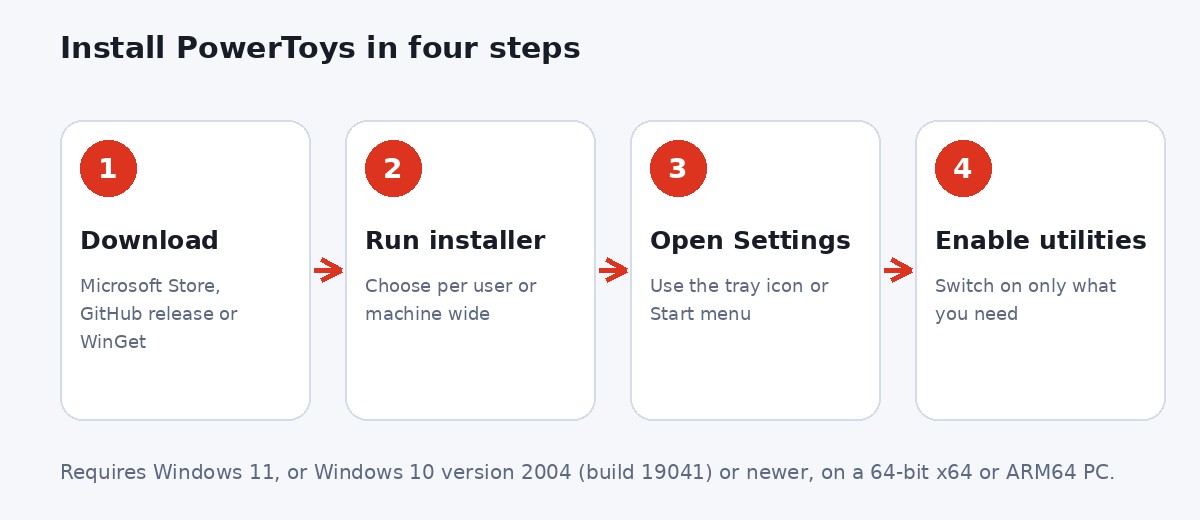
- Windows 11, or Windows 10 version 2004 (build 19041) or newer.
- A 64-bit processor: x64 or ARM64.
- Microsoft Edge WebView2 Runtime: the installer sets this up for you during installation.
How to install PowerToys
Microsoft recommends two main methods: the GitHub installer or the Microsoft Store. WinGet, Chocolatey and Scoop are also listed as alternatives.
Method 1: GitHub installer
- Open the official releases page at the PowerToys releases page.
- Find the latest stable release and expand the Assets list.
- Download
PowerToysSetup-0.xx.x-x64.exefor most PCs, or thearm64file for ARM devices. - Run the file and follow the prompts.
The installer offers two install types. Per user installs only for your account, in %userprofile%\AppData\Local\Programs. Machine wide installs for all users in Program Files. Updates work with either one.
Method 2: Microsoft Store
Open the official Store page at aka.ms/getPowertoys and click Install. This is a good choice if you prefer the Store to manage updates.
Method 3: WinGet
If you use the Windows Package Manager, you can install from a terminal. The PowerToys GitHub page gives these commands:
winget install Microsoft.PowerToys -s winget
for the default per-user install, and
winget install --scope machine Microsoft.PowerToys -s winget
for a machine-wide install. Updates through WinGet keep the install scope you chose. Chocolatey and Scoop are mentioned as community options, but Microsoft does not document commands for them.
After installing
- Open PowerToys from the Start menu or the system tray icon.
- In the left sidebar you will see each utility. Click one to open its page and use the Enable toggle.
- Set the shortcuts you want, then try the utility in a real task.
- Check for updates in Settings. PowerToys also checks while it is running and can show a notification when an update is available. The latest release notes describe an update channel setting under Settings > General with Stable (the default) and Insider (preview builds). Stay on Stable unless you want to test early features.
Tip for beginners: Do not enable everything on day one. Pick two or three utilities, use them for a week and then add more. This keeps shortcuts from clashing and helps you learn each tool properly.
All PowerToys utilities at a glance
The table below summarises every utility named in the official overview, with its default shortcut where Microsoft documents one. Shortcuts can be changed in each utility's settings page.
| Utility | What it does | Default shortcut or how to start |
|---|---|---|
| Advanced Paste | Paste clipboard content in another format, with optional AI | Win + Shift + V |
| Always On Top | Pin a window above all others | Win + Ctrl + T |
| Awake | Keep your PC awake without changing the power plan | Tray icon |
| Color Picker | Pick colours from anywhere on screen | Win + Shift + C |
| Command Not Found | Suggest WinGet packages in PowerShell 7 | Runs inside PowerShell 7 |
| Command Palette | Keyboard-first launcher for apps, commands and tools | Win + Alt + Space |
| Crop And Lock | Show a cropped part of a window in its own window | Win + Ctrl + Shift + T (Thumbnail) |
| Environment Variables | Manage environment variables with profiles | PowerToys Settings |
| FancyZones | Custom window layouts and snapping | Win + Shift + ` (layout editor) |
| File Explorer add-ons | Preview pane and thumbnails for extra file types | File Explorer Preview pane |
| File Locksmith | Find which process is using a file | Right-click a file |
| Grab And Move | Move and resize windows by dragging anywhere | Alt + drag |
| Hosts File Editor | Edit the Windows hosts file safely | Tray menu |
| Image Resizer | Resize images from the right-click menu | Right-click images |
| Keyboard Manager | Remap keys and shortcuts | PowerToys Settings |
| Light Switch | Switch light and dark theme by schedule | Shortcut you set |
| Mouse utilities | Find My Mouse, Highlighter, Crosshairs, Jump | Win + Shift + H (Highlighter) |
| Mouse Without Borders | Use one keyboard and mouse across PCs | PowerToys Settings |
| New+ | Create files and folders from templates | Right-click menu |
| Peek | Quick preview of files | Space (in File Explorer) |
| Power Display | Control external monitor settings | Shortcut you set |
| PowerRename | Bulk rename files | Right-click files |
| PowerToys Run | Quick launcher with plugins | Alt + Space |
| Quick Accent | Type accented characters | Hold a letter, then press the activation key |
| Registry Preview | View and edit .reg files visually | Right-click a .reg file |
| Screen Ruler | Measure pixels on screen | Win + Ctrl + Shift + M |
| Shortcut Guide | See keyboard shortcuts for Windows and apps | Win + Shift + ? |
| Text Extractor | Copy text from images and screen with OCR | Win + Shift + T |
| Window Hopper | Cycle through windows of the same app | Alt + ` |
| Workspaces | Launch a set of apps in saved positions | Win + Ctrl + ` (opens the editor) |
| ZoomIt | Zoom, draw and record the screen | Ctrl + 1 to Ctrl + 5 |
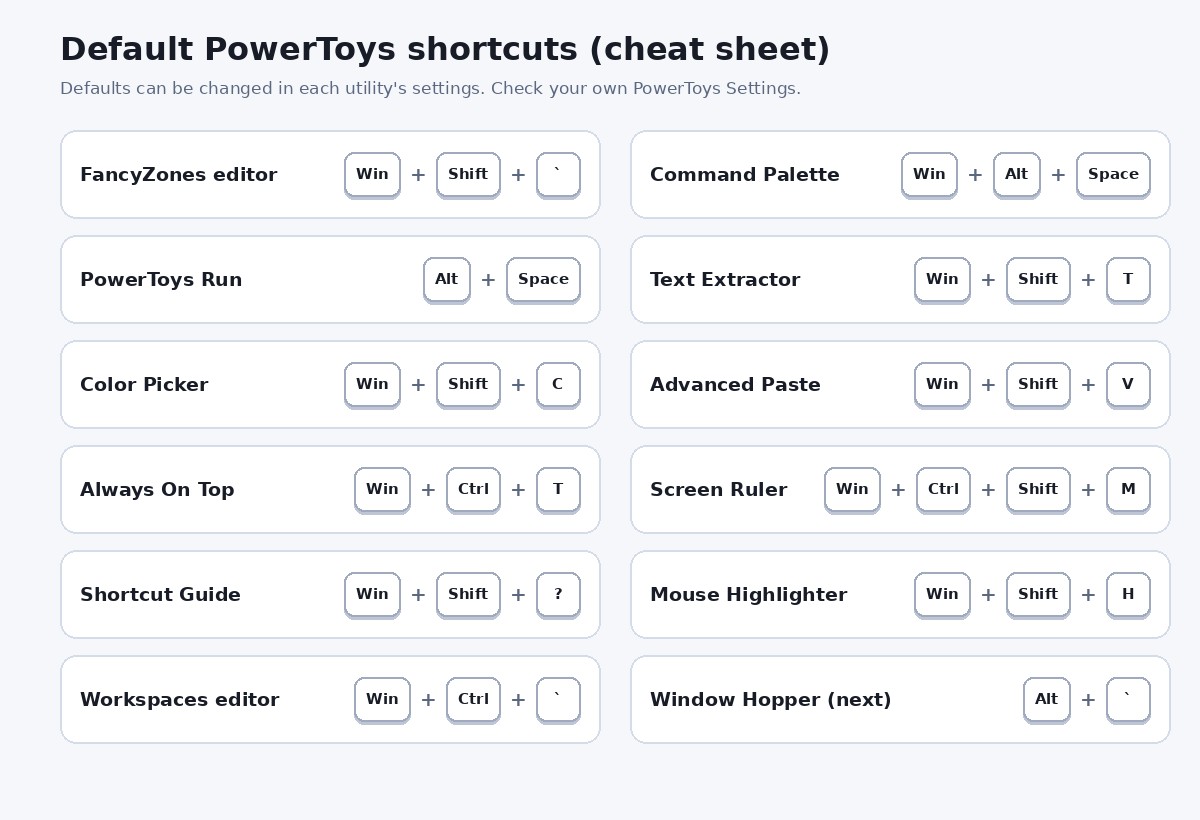
Important: newer utilities such as Window Hopper, Light Switch, Power Display and Grab And Move were added in recent releases, and Window Hopper is off by default. If you do not see a utility, update PowerToys and check again. The official list describes these as the "currently available" utilities. One older tool, Video Conference Mute, is not in the current list: its documentation page says it is moving into legacy mode, so do not expect it in new installs.
Window management tools
These tools help you arrange, pin and switch between windows. If you work with several apps at once, this group gives the biggest everyday benefit.
FancyZones
What it does. FancyZones lets you create custom layouts of "zones" on your screen and snap windows into them. Instead of only halves and quarters, you can build a three-column layout, a big main area with two small side areas, or any other grid.
Benefits. Fewer manual resizes, a tidy desktop, and perfect for ultra-wide monitors and multi-monitor setups.
How to use it.
1. Enable FancyZones in PowerToys Settings.
2. Press Win + Shift + ` to open the layout editor, or click Open layout editor in Settings.
3. Select Create new layout, then choose Grid or Canvas. Grid starts with three columns that you can split, merge and drag. Canvas starts with one zone, and you can add zones that move, resize and overlap.
4. Save the layout and select it for your monitor.
5. To snap a window, drag it and hold Shift (the default) until the zones appear, then drop it in a zone. Hold Ctrl while dragging to choose several zones.
6. To use the keyboard instead, turn on Override Windows Snap and use Win + arrow keys.
Practical example. Create a three-column layout on a wide screen: a browser on the left, a document in the middle and chat on the right. With the layout saved, each app snaps into place in a second.
Useful shortcuts from the docs. Win + Ctrl + Alt + a number applies a layout you numbered, and Win + PgUp or PgDn cycles windows within a zone.
Limits. Snapping elevated apps such as Task Manager requires PowerToys to run as administrator. Layouts are stored in %LocalAppData%\Microsoft\PowerToys\FancyZones\custom-layouts.json; Microsoft advises not editing it by hand.
Always On Top
What it does. Pins the active window above all other windows, so it stays visible while you work in another app.
How to use it.
1. Enable Always On Top in Settings.
2. Click the window you want to pin and press Win + Ctrl + T.
3. Press the shortcut again, or close the window, to unpin.
Example. Keep a small calculator, a video call or a note-taking window above a spreadsheet.
Settings and limits. You can show a coloured border around pinned windows, play a sound, exclude apps and disable the feature while Game Mode is on. A pinned window sits above normal windows but cannot always stay above other topmost windows. Microsoft notes possible issues with Citrix, Remote Desktop and VMware windows.
Grab And Move
What it does. Lets you move and resize a window by holding a modifier key and dragging anywhere inside it, so you do not need to aim for the title bar or window edges.
How to use it. Hold Alt (default) and drag with the left mouse button to move a window. Hold Alt and drag with the right mouse button to resize it from the nearest edge or corner. You can switch the modifier to the Windows key in Settings.
Tip. If the Alt key opens the window menu when you release it, turn on Prevent Alt from activating the window menu.
Limits. The official page says it may not work reliably with some touchpads.
Window Hopper
What it does. Cycles between windows that belong to the same app, unlike Alt + Tab, which shows every app.
How to use it. Enable it in Settings (it is off by default). Hold Alt and press ` (the backtick key above Tab) to go forward, or add Shift to go backward. Release Alt to switch. Press Esc before releasing to cancel.
Example. You have six File Explorer windows open. Window Hopper moves between only those six instead of every program.
Limits. It does not open when the focused app has fewer than two eligible windows.
Workspaces
What it does. Saves a set of apps and their window positions, then launches the whole set with one click.
How to use it.
1. Enable Workspaces, then open the editor from Settings or press Win + Ctrl + `.
2. Select Create workspace. Open your apps and arrange them the way you want.
3. Select Capture. Name the workspace, adjust sizes, optionally add command-line arguments and create a desktop shortcut.
4. Use Launch in the editor, or the desktop shortcut, to start the whole set.
Example. A "Morning" workspace that opens your browser, mail client and notes app in fixed positions.
Limits. PowerToys launches an app and then moves it, so you may see windows move on screen. Snapped layouts are not restored, and apps launched as administrator cannot be repositioned yet.
Crop And Lock
What it does. Creates a cropped copy of part of a window. You can show a live thumbnail, replace the window with the cropped area, or take a still snapshot.
How to use it. Focus the window, press Win + Ctrl + Shift + T (Thumbnail) or Win + Ctrl + Shift + R (Reparent), and drag over the area you want. Use the close button on the cropped window to restore the original.
Modes in plain words. - Thumbnail: a live view that updates, but you cannot control the app through it. Best compatibility. - Reparent: the cropped area replaces the original window and you can use it normally. Compatibility is limited. - Screenshot: a frozen picture of the area.
Example. Keep only a video call's chat area or a running progress bar visible in a small window.
Limits. Reparent may fail with maximized windows, some UWP apps such as Calculator, and apps with tabs or sub-windows.
Launchers and shortcut helpers
Command Palette
What it does. Command Palette is a keyboard-first launcher. You press a shortcut, type, and it can launch apps, run commands, search files and the web, do quick calculations, open Windows Settings pages, switch windows, browse clipboard history, check system metrics and open other PowerToys tools.
How to use it.
1. Make sure Command Palette is enabled on the PowerToys Settings Home page and PowerToys is running in the background.
2. Press Win + Alt + Space (the default) and start typing.
3. Try examples from the official page: > cmd to run a command, 23*47 to calculate, $ display to open a Windows Settings page, and ?? to search the web.
4. Use the Settings page to change the shortcut, theme and compact mode.
Extras documented by Microsoft. A Home page with pinned commands, bookmarks for files, folders, URLs and shell commands, a Dock (a persistent toolbar on the screen edge), a compact search box mode, themes, and an Extension Gallery where you can install community extensions.
Example. Press the shortcut, type sqrt(256) and get 16 without opening Calculator. Type an app name and press Enter to launch it.
Limits. It must be running in the background. The official page does not list hardware requirements.
PowerToys Run
What it does. The older quick launcher. Press the shortcut, type, and open apps, files or run searches. It supports plugins and direct activation prefixes.
How to use it. Press Alt + Space, then type. Use Tab to move through results and context buttons, Ctrl + Shift + Enter to open as administrator, Ctrl + Shift + E to open the containing folder and Esc to hide.
Handy prefixes from the documentation.
| Prefix | Plugin | Example |
|---|---|---|
= |
Calculator | = 2+2 |
. |
Program | . code |
> |
Shell command | > ping localhost |
%% |
Unit converter | %% 10 ft to m |
$ |
Windows Settings | $ device |
< |
Window Walker | < outlook |
?? |
Web search | ?? what is pi |
Good to know. Microsoft's PowerToys Run page says the launcher is getting an upgrade and presents Command Palette as its evolution. If you are starting fresh, try Command Palette first; if you already know PowerToys Run, you can keep using it.
Shortcut Guide
What it does. Shows keyboard shortcuts for Windows and supported apps, so you learn them without searching the web.
How to use it. Press Win + Shift + ? to open it and press the same shortcut or Esc to close. The sidebar lists the app in the foreground, and you can search with Ctrl + F, pin favourite shortcuts, and hold the Windows key for about 0.9 seconds to show taskbar indicators.
Advanced. You can add shortcuts for unsupported apps by placing YAML manifest files in %LOCALAPPDATA%\Microsoft\WinGet\KeyboardShortcuts.
Limits. Coverage depends on the built-in manifests, so not every app is included.
File and File Explorer tools
PowerRename
What it does. Bulk-renames files and folders with search and replace, regular expressions, counters and date variables, and shows a preview before anything changes.
How to use it. 1. Enable PowerRename. 2. In File Explorer, select the files, right-click and choose Rename with PowerRename. On Windows 11 you may need Show more options first. 3. Type text in Search for and Replace with. 4. Turn on Match all occurrences if you want every match replaced (it is off by default, so only the first match changes). 5. Check the Preview, untick any files you want to skip, and apply.
Practical example from the docs. To change powertoys-powerrename.txt into supertoys-superrename.txt, search for power, replace with super, and turn on Match all occurrences.
Regex example. To change 29-03-2020 into 2020-03-29, enable regular expressions and Match all occurrences, search for (\d{2})-(\d{2})-(\d{4}) and replace with $3-$2-$1.
Other options. Apply to filename or extension only, change case, add numbers with ${}, ${increment=X} and ${padding=X}, and use date or photo-metadata variables.
Undo. Use File Explorer's Undo Rename (Ctrl + Z) straight after renaming.
Image Resizer
What it does. Resizes one or many images from the right-click menu, without opening an editor.
How to use it. Select images, right-click and choose Resize with Image Resizer, pick a size, and confirm. You can also drag files with the right mouse button and drop them in a folder to resize and save there.
Settings. Add your own presets in centimetres, inches, percent or pixels. Fit scales without cropping, Fill scales and crops, and Stretch forces the exact size. Output names use a format string, for example %1 (%2) gives example (Small).png.
Example. Prepare 50 phone photos for an email by sending them through a smaller preset in one go.
Limits. Fallback encoding is only used for formats that cannot be saved in their original type; it is not a general file converter. There is also a command-line tool, PowerToys.ImageResizerCLI.exe.
File Explorer add-ons
What it does. Adds preview pane and thumbnail support for more file types.
Supported types per the docs. Preview pane: SVG, Markdown, source code (150+ extensions), PDF, G-code, binary G-code and QOI. Thumbnails: SVG, PDF, G-code, binary G-code, STL and QOI.
How to use it. 1. Turn on the add-on for the file type in PowerToys Settings. 2. In File Explorer open View > Preview pane. 3. Click a file to see its preview. 4. If the pane stays blank, open Options > View > Advanced settings and tick Show preview handlers in preview pane.
Limits. Enabling handlers can override other installed handlers, and the docs mention the PDF handler not working with Outlook. Thumbnails may need a restart, and may not appear in cloud-managed folders.
Peek
What it does. Instant file preview without opening an app. Select a file in File Explorer and press Space.
How to use it. Press Space on a selected file, use the arrow keys to move between files, press Enter to open the file in its default app, and use the pin button to keep the window's size and position. Press Delete to send the file to the Recycle Bin.
Supported content. Images, Office documents, videos, web pages, Markdown, text, source code files and folder summaries.
Limits. Only files can be deleted from Peek, not folders. Some source-code display options are described as still in preview.
File Locksmith
What it does. Shows which process is using a file or folder, and lets you end that process. It answers the classic message: "The action can't be completed because the file is open in another program."
How to use it. 1. Enable File Locksmith. 2. Right-click the file or folder, choose Show more options if needed, then Unlock with File Locksmith. 3. Review the list and choose End task only for a process you recognise. 4. Select Reload to refresh the list.
Admin note. Without administrator rights it may miss processes owned by other users. Use Restart as administrator to scan all.
Warning. Ending a process can lose unsaved work. Save first.
New+
What it does. Adds your own file and folder templates to the right-click menu, so you can create a ready-made document, project folder or shortcut in one step.
How to use it. Enable New+, right-click a folder and choose New+, then pick a template. To add templates choose New+ > Open templates and drop files or folders into the Templates folder. Items are listed alphabetically, with folders first.
Where templates live. %localappdata%\Microsoft\PowerToys\NewPlus\Templates by default. Templates do not roam between PCs, but you can point the location to a cloud-synced folder.
Example. A "Meeting notes" template with the date in its file name, using the date variables the docs describe.
Keyboard, text and clipboard tools
Keyboard Manager
What it does. Remaps keys and shortcuts. You can swap two keys, turn an unused key into something useful, or change a shortcut.
How to remap a key. 1. Open PowerToys Settings, go to Keyboard Manager and make sure it is enabled. 2. Select Remap a key, then Add key remapping. 3. Choose the key in the first column and the key to send in the second, then select OK. Changes apply immediately.
How to remap a shortcut. Select Remap a shortcut, add a shortcut, enter the original combination and the new one. A shortcut must start with a modifier and end with a normal key, up to four keys (five for a chord).
Limits from the docs.
- Win + L and Ctrl + Alt + Del cannot be remapped.
- The Fn key generally cannot be remapped.
- It does not work on the login or password screen.
- Elevated apps are not remapped unless PowerToys runs as administrator.
- Not recommended for games. It can affect performance and some games bypass it.
- Mappings apply to all keyboards, not per device.
Quick Accent
What it does. Lets you type accented characters such as à, é, ñ or ü on a keyboard that does not have them.
How to use it. Enable it in Settings. By default, hold the base letter and press the activation key (Left, Right or Space), for example hold A and press Space to get à. An alternative mode lets you press and hold the letter, and the picker opens after the hold time. Use Characters in Settings to limit the picker to the languages or sets you need.
Example. Typing "café" or "señor" without switching keyboard layouts.
Advanced Paste
What it does. Pastes clipboard content in a different format. Plain text, Markdown and JSON conversions run locally and do not use AI. Optional AI features are off by default.
How to use it. Press Win + Shift + V to open the window and choose a format. Press Ctrl + Win + Alt + V to paste as plain text directly. Shortcuts for direct Markdown and JSON paste are unset until you assign them. Avoid setting Ctrl + V as the activation shortcut.
Example. Copy a formatted web paragraph and paste it as plain text with no fonts or links carried over.
AI features. To use "Paste with AI" you add a model provider in Settings. Online providers need an API key and may need paid credit. Local options include Foundry Local, Ollama and Phi Silica, which needs a supported Copilot+ PC. Image-to-text uses local OCR, not AI.
Privacy tip. If you use an online provider, your clipboard content is sent to that provider, so avoid it for sensitive text.
Text Extractor
What it does. Copies text from anywhere on screen using OCR (optical character recognition), so you can grab text that you cannot select normally, such as text shown in an image.
How to use it.
1. Enable Text Extractor.
2. Press Win + Shift + T.
3. Click and drag over the text. It is copied to the clipboard.
4. Press Esc to cancel.
Language note. It recognises only languages whose Windows OCR language pack is installed, and the default follows your Windows language and keyboard settings. Always proofread the result.
Troubleshooting. If you see "No possible OCR languages are installed" and your system drive is not C:, the official page says to copy X:/Windows/OCR to C:/Windows/OCR, where X: is your system drive.
Mouse, screen and display tools
Mouse utilities
Mouse utilities is a group of four tools.
- Find My Mouse: highlights the pointer when you press
Ctrltwice, use a custom shortcut or shake the mouse. - Mouse Highlighter: shows a visual effect on clicks. The default toggle is
Win+Shift+H, with Spotlight, Circle and Ripple modes. - Mouse Pointer Crosshairs: draws crosshair lines across the screen, useful on large displays. It has a gliding-cursor accessibility mode started with
Win+Alt+.. - Mouse Jump: jumps the pointer to another spot or monitor. In the current interface you can press
1to9to jump to a numbered monitor.
Example. Turn on Mouse Highlighter while recording a tutorial so viewers can see every click.
Mouse Without Borders
What it does. Use one keyboard and mouse across up to four computers, share the clipboard and copy files.
How to set up. 1. Install PowerToys on each computer and open Mouse Without Borders. 2. On the first computer, select New Key to generate a security key. 3. On the second computer, enter the key and the first computer's name, then select Connect. 4. Move the pointer past the screen edge to switch computers. Drag device icons to match your desk layout.
Limits from the docs. All computers must be on the same network. File transfer supports a single file up to 100 MB, and folders or multiple files must be zipped first.
Security. The security key protects the link. Service mode lets you control elevated apps and the lock screen, but Microsoft warns that it increases security risk, so use it carefully.
Color Picker
What it does. Picks a colour from anywhere on screen and copies it, for example as HEX.
How to use it. Press Win + Shift + C, move the pointer over a colour, scroll to zoom for accuracy, then left-click to copy the colour, save it to history and open the editor. The editor keeps your last 20 colours, and you can fine-tune with HSV, RGB or HEX, or add custom formats.
Limits. Wide colour gamut and HDR formats are not supported.
Example. A designer matches a button colour on a website to a brand palette.
Screen Ruler
What it does. Measures distances in pixels on the screen using edge detection.
How to use it. Press Win + Ctrl + Shift + M. Choose Bounds, Spacing, Horizontal or Vertical (or press Ctrl + 1 to 4), then click to copy a measurement. Scrolling up raises the edge-detection tolerance, which helps with gradients and shadows. Press Esc to exit.
ZoomIt
What it does. Screen zoom, drawing and recording for presentations and tutorials.
Default shortcuts from the docs.
| Action | Shortcut |
|---|---|
| Zoom | Ctrl + 1 |
| Draw without zoom | Ctrl + 2 |
| Break timer | Ctrl + 3 |
| Live Zoom | Ctrl + 4 |
| Record | Ctrl + 5 |
| Record a screen region | Ctrl + Shift + 5 |
| Record a window | Ctrl + Alt + 5 |
Example. Zoom into a line of code while presenting and draw an arrow on it.
New in the latest release. The release notes for version 0.101.2362.0 also mention a DemoMirror feature for mirroring a screen, region or window to another display. Check ZoomIt's settings page to see whether it is available on your version.
Light Switch
What it does. Switches Windows between light and dark themes on a schedule.
Schedule options. Sunset to sunrise (needs location), fixed hours, follow Windows Night Light, or off (the manual shortcut still works). You can apply the theme to the system UI, apps or both. If Power Display is enabled, you can link monitor profiles to each theme.
Limits. App theming applies only to supported apps.
Power Display
What it does. One flyout to control external monitor brightness, contrast, volume, input source, colour temperature and power state, using DDC/CI, the same channel as the monitor's on-screen menu.
How to use it. Enable Power Display, open it with your shortcut or from Settings, and use the sliders. You can save profiles and link brightness across monitors.
Important cautions. It works only with external monitors that support DDC/CI. The official page lists risks: on a small number of monitors it can cause a system crash, colour temperature changes can behave unpredictably on some models, and switching to an input with no signal leaves the screen black until you change input with the monitor's buttons. Use "max compatibility" mode only if a monitor is missing.
Awake
What it does. Keeps your PC awake without changing your Windows power plan.
Modes. Use the selected power plan (passive), keep awake indefinitely, keep awake for a time interval, or keep awake until a set date and time. By default the display may still turn off, so enable Keep screen on if needed.
How to use it. Enable Awake, then right-click the tray icon to change mode and choose temporary durations.
Limit. It does not work on the lock screen.
Example. Keep the PC awake during a long download or presentation.
Developer and administrator tools
Environment Variables
What it does. Lets you manage Windows environment variables in a friendlier window and group them in profiles you can switch.
How to use it. Select New profile, name it, add variables, and turn the profile on. Only one profile can be applied at a time, and profile variables take precedence over User and System variables. Editing System variables needs administrator rights.
Hosts File Editor
What it does. Edit the Windows hosts file, which maps names to IP addresses before DNS is checked. Useful for testing a website on a new server.
How to use it. Open it from the PowerToys tray menu (it has no keyboard shortcut), select New entry, type the IP address, host name and optional comment, tick Active and select Add.
Safety. The editor starts as administrator. It backs up the file before the first save in a session. Wrong entries can block websites, so remove entries you no longer need.
Registry Preview
What it does. Opens .reg files in a visual tree so you can review changes before writing them to the registry.
How to use it. Right-click a .reg file, choose Preview, review the tree, and only then select Write to registry, which asks for confirmation. There is a 10 MB file limit, and editing happens in Notepad.
Safety. Registry changes can affect Windows stability. Only apply files from sources you trust and consider backing up first.
Command Not Found
What it does. A PowerShell 7 module that notices when you type a command that does not exist and suggests a WinGet package that provides it, so you can install the missing tool without searching the web.
Requirements (from the official page). PowerShell 7 and the Microsoft.WinGet.Client module. Microsoft notes that some PowerShell configurations are not compatible, and links to a GitHub issue about it.
How to set it up. 1. Open the Command Not Found page in PowerToys Settings. 2. Select Install. 3. Restart your PowerShell session.
The installer turns on two PowerShell 7 experimental features the module needs (PSFeedbackProvider and PSCommandNotFoundSuggestion) and adds a short block to your PowerShell profile, creating the profile if it does not exist. Select Uninstall on the same page to remove that block.
Who it is for. Developers and admins who use PowerShell 7. If you do not use the terminal, you can skip it.
Comparison tables
Command Palette vs PowerToys Run
| Command Palette | PowerToys Run | |
|---|---|---|
| Default shortcut | Win + Alt + Space |
Alt + Space |
| Role | Newer launcher, presented by Microsoft as the evolution | Older launcher with plugins |
| Extras | Home page, bookmarks, Dock, compact mode, extension gallery | Plugin manager and prefixes |
| Best for | New users who want the latest features | Users already used to its prefixes |
FancyZones vs built-in Windows snapping
| FancyZones | Windows snapping | |
|---|---|---|
| Layouts | Custom grids and canvas layouts | Preset halves, quarters and Snap layouts |
| Setup | Layout editor needed | None |
| Multi-monitor | Per-monitor layouts | Basic |
| Best for | Wide monitors and complex workflows | Quick, simple tiling |
Peek vs File Explorer preview pane
| Peek | Preview pane | |
|---|---|---|
| Start | Select a file, press Space |
Turn on View > Preview pane |
| Layout | Separate quick window | Fixed pane inside Explorer |
| Navigation | Arrow keys between files | Click files |
| Best for | Fast look-and-close | Always-on preview |
Always On Top vs Crop And Lock
| Always On Top | Crop And Lock | |
|---|---|---|
| Result | The whole window stays above others | Only a selected part of a window is shown |
| Interaction | Full | Thumbnail is view-only, Reparent is interactive |
| Best for | Calculators, notes, videos | Progress bars, chat areas, small widgets |
Which utilities suit which person
| If you are... | Start with |
|---|---|
| A student | Text Extractor, Quick Accent, PowerRename, Advanced Paste |
| An office worker | FancyZones, Command Palette, Keyboard Manager, Workspaces |
| A developer | Command Palette, Environment Variables, Hosts File Editor, Registry Preview |
| A designer or content creator | Color Picker, Screen Ruler, Image Resizer, ZoomIt |
| A multi-monitor user | FancyZones, Mouse Jump, Power Display, Mouse Without Borders |
| A presenter or teacher | ZoomIt, Mouse Highlighter, Awake |
Five best PowerToys for beginners
- FancyZones: the biggest daily improvement for anyone with a wide screen.
- Command Palette: launch anything from the keyboard.
- PowerRename: saves hours on file clean-up.
- Text Extractor: copies text that you could not select before.
- Keyboard Manager: fixes awkward key layouts.
Our recommendations: what to enable, and what to skip
PowerToys is most useful when you treat it as a menu, not a checklist.
- Enable first: FancyZones if you have a wide or second monitor, Command Palette (or PowerToys Run) if you like launching things from the keyboard, PowerRename if you handle many files, and Text Extractor for screenshots and images.
- Enable only when you need it: Keyboard Manager (remapping the wrong key can confuse you later), Mouse Without Borders (needs several PCs on one network) and Power Display (works only with compatible external monitors).
- Handle with care: Hosts File Editor, Registry Preview, Environment Variables and File Locksmith change how Windows behaves. Use them only when you know what you are changing.
- Skip if you do not use a terminal: Command Not Found.
- Do not use for gaming: Microsoft itself does not recommend Keyboard Manager for games, and several tools can be paused with the Game Mode setting.
A simple habit works well: add one utility at a time, use it for a week, and keep it only if it saves you time.
Troubleshooting common PowerToys problems
A shortcut does nothing. - Make sure PowerToys is running (check the system tray). - Open that utility's page in PowerToys Settings and confirm it is enabled. - Another program may use the same shortcut. Change it in the utility's settings. - If the target app runs as administrator, PowerToys may need to run as administrator too.
FancyZones will not snap a window. Hold Shift while dragging (the default), or turn that setting off. Check that the app is not on the excluded list. Elevated apps need PowerToys running as administrator.
PowerRename, Image Resizer or File Locksmith is missing from the right-click menu. Enable the utility in Settings. On Windows 11, choose Show more options to see the classic menu.
Preview pane is blank. Turn on the File Explorer add-on and check Show preview handlers in preview pane under File Explorer options.
Text Extractor says no OCR languages are installed. Install the OCR language pack for your language with the PowerShell commands on the official Text Extractor page, or copy the OCR folder as described above.
Mouse Without Borders will not connect. Check that all PCs are on the same network, that the key and computer name are correct, and that the firewall allows the connection. Use Refresh connections if it drops.
Keyboard Manager does not work in a game. Microsoft does not recommend it for games, and some games bypass remapping.
Power Display shows a black screen. If you switched to an input with no signal, use the monitor's physical buttons to change input.
PowerToys is using too many resources. Turn off utilities you do not use. Optional features like continuous screen capture (Screen Ruler) use more resources.
Is PowerToys safe?
PowerToys is published by Microsoft and its code is open source on GitHub. To stay safe, download it only from the Microsoft Store or the official GitHub repository, not from third-party mirrors. Be careful with tools that change the system (Hosts File Editor, Registry Preview, Environment Variables) and with online AI providers in Advanced Paste, which send clipboard content to an outside service.
Frequently asked questions
Is PowerToys free? Yes. It is a free, open-source Microsoft project.
Does PowerToys work on Windows 10? Yes, Windows 10 version 2004 (build 19041) or newer, and Windows 11.
Does it work on ARM PCs? Yes. Official installers exist for both x64 and ARM64.
Do I need to install every utility? No. You install the whole package, but you switch utilities on or off one by one in Settings.
Does PowerToys slow down my PC? Most utilities are light, but turning off the ones you do not use is a good habit.
How do I update PowerToys? PowerToys checks for updates while running and can notify you. You can also check in Settings or install the new version from the Store or GitHub.
Is Command Palette replacing PowerToys Run? Microsoft presents Command Palette as the evolution of PowerToys Run. Check the current documentation for any changes.
Can I change the shortcuts? Yes, in each utility's settings page.
Can PowerToys remap keys in every app? Keyboard Manager works system-wide with the limits listed above (login screen, elevated apps and games).
Where can I report a bug? On the official PowerToys GitHub repository.
Related PowerToys guides
Want a deeper look at one utility? Read our step-by-step guides to FancyZones, PowerRename and Keyboard Manager.
Official links
- PowerToys documentation on Microsoft Learn
- Installing PowerToys
- PowerToys on GitHub
- PowerToys releases
- Microsoft Store listing
Conclusion
PowerToys is one of the most useful free additions you can make to Windows. You do not need to master all thirty utilities. Start with window layouts, a launcher, bulk renaming and text capture, then add more when you notice a repeated annoyance in your day. Keep PowerToys updated, change shortcuts that clash with other apps, and treat the system-level tools with care.
Sources checked: Microsoft Learn PowerToys documentation (overview, install and individual utility pages) and the PowerToys GitHub releases page. Verified in October 2026. PowerToys changes often, so check the official documentation for the latest details.